This feature is available only to the Pro license users.
The Notes for emails feature is a powerful productivity tool that allows you to add a local note to an email. This does not change the email itself but you can mark down things you need to send a reply later or mark down important details from the email so you have them handy without having to read through the whole email thread again.
There are multiple ways of how to add a Note to email.
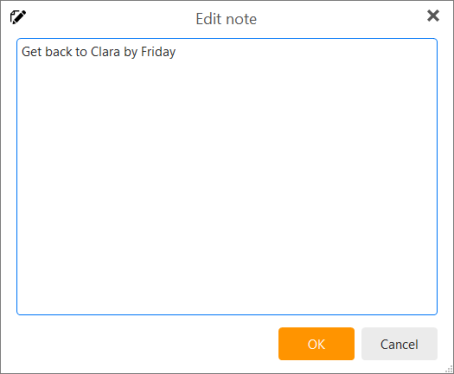
One of them is to right-click on the message and select “Add note” from the context menu. It will open an empty form where you can write your note and save it by clicking on “Ok”.
In the message detail, under the recipient, you will then see the notebook icon, the text of the note as well as the “Edit” button.

Clicking on the edit button allows you to freely edit your note anytime you want.
The “Add note” option is available in every context menu referring to the specific email. Additionally, you can add the toolbar button “Add note” to the main toolbar (right-click on the main toolbar, select Customize, locate the “Add note” line in the “Available items” and add it to the “Items to show” column). The “Add note” button will be changed to the “Edit note” button once a note is added.
Add Note in toolbar
Edit Note in toolbar
As mentioned, the note will appear in the message detail, under the recipient. But it is also visible in the message list.
If you are using the Compact layout, in the right side of the message, there is going to be the same notebook icon. Hovering your mouse above the icon will show you the note text preview.
If you are using the Single line layout, the notebook icon is visible next to the Subject or in its own column called “Notes”. The note will also be visible in the separate mail window or mail preview from the right sidebar (Contact Details or Agenda), in the same location as in the message detail, under the recipient.
Please know that all the notes you add are locally saved in your database. That means they are not synchronized to the server and across multiple devices.
To remove the note simply click the Edit or Edit Note button/option in drop-down menu and remove all text (if the note is long, simply press Ctrl+A shortcut to select all and then Delete). Click OK and the note will be removed.